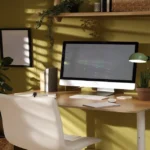
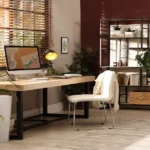
Your monitor is probably in the wrong spot. Too high, too low, or parked in the center of your desk like a brick. A monitor arm fixes that. It lifts the screen to the right height, frees up desk space, and makes your entire workstation feel less cramped. Here is how to choose the right one.
Table of Contents
Why Use a Monitor Arm
Ergonomics is the big reason. The top of your screen should sit at or slightly below eye level, about an arm’s length away. Most standard stands cannot do that. A good ergonomic monitor arm lets you move the screen forward, backward, up, down, and sideways without fighting a heavy base.
Space matters too. Removing the factory stand can reclaim 20 to 30 percent of your desktop. That is a big deal for a small desk. If you are building a Home Office Setup, clearing surface area is one of the fastest wins.
Types of Monitor Arms
Single Monitor Arm
Perfect for one-screen users who want clean positioning. Great for laptops paired with an external display. A single monitor arm desk mount clamps to the back or through a grommet hole.
Dual Monitor Stand / Dual Monitor Arm
If you run two screens, a dual monitor arm keeps them aligned and lets you angle them independently. You can bring them close together for a seamless view or push one to the side for reference material. This is common in developer and designer setups.
Wall Mount
A wall mount works when desk space is extremely tight or when you want the monitor to float over a shallow work surface. It requires drilling into the wall, so it is best for permanent setups.
What to Check Before Buying
- VESA compatibility: Most monitors use 75x75mm or 100x100mm patterns. Check the back of your display before you order.
- Weight capacity: Ultrawide and curved monitors can weigh 20 pounds or more. If the arm is under specced, it will sag.
- Range of motion: Look for tilt, swivel, rotation, and extension depth. Gas spring arms are smoother than mechanical spring arms.
- Mount type: C-clamps are easiest to install. Grommet mounts are sturdier but require a hole in the desk.
- Cable management: Some arms include clips or channels to hide cords. Cleaner cables mean a cleaner mind.
Recommendations by Category
Best overall: The Ergotron LX is a classic for a reason. Smooth movement, solid build, and a 10-year warranty. It costs more, but it holds value over time.
Best budget monitor arm: The VIVO Single LCD Monitor Desk Mount handles most 13- to 32-inch screens well. It cuts a few premium features but gets the core job done at under $50.
Best dual monitor stand: The Ergotron LX Dual Stacking Arm lets you position two screens side by side or stacked vertically. Another strong option is the AmazonBasics Premium Dual Arm, which is made by Ergotron under a different label.
Best for heavy monitors: The Ergotron HX supports up to 42 pounds, making it ideal for large ultrawides. If you own a Samsung Odyssey G9 or similar, this is the safest pick.
Installation and Cable Tips
Attach the arm first, route cables through the arm channel, then mount the monitor. Enlist a friend if the screen is large. Tighten tension springs to match the monitor weight so the arm stays where you leave it. For cable inspiration, see our Desk Setup Ideas and Standing Desk Guide.
Monitor arms also pair well with posture-friendly routines. Pair your new mount with advice from our Work From Home Tips to build a healthier daily flow.
Common Buyer Mistakes
Many buyers overlook desk thickness. If your desktop is thicker than two inches, a standard C-clamp may not fit. Another error is buying a dual monitor arm and using one heavy and one light screen without balancing tension. This causes uneven sagging. Measure everything before ordering, including the distance from the back of the desk to the nearest wall. Some long arms hit the wall when pushed back.
Which Monitor Arm Fits Your Work Style
Writers and general remote workers usually do fine with a single monitor mount. Developers, video editors, and traders benefit from a dual monitor arm. Content creators with ultrawides should prioritize weight capacity over aesthetics. The best monitor arm is the one you install correctly and adjust daily without thinking.
Common Buyer Mistakes
Many buyers overlook desk thickness. If your desktop is thicker than two inches, a standard C-clamp may not fit. Another error is buying a dual monitor arm and using one heavy and one light screen without balancing tension. This causes uneven sagging. Measure everything before ordering, including the distance from the back of the desk to the nearest wall. Some long arms hit the wall when pushed back.
Which Monitor Arm Fits Your Work Style
Writers and general remote workers usually do fine with a single monitor mount. Developers, video editors, and traders benefit from a dual monitor arm. Content creators with ultrawides should prioritize weight capacity over aesthetics. The best monitor arm is the one you install correctly and adjust daily without thinking.
Frequently Asked Questions
Are monitor arms worth it for a single screen?
Yes. Even one monitor benefits from proper height alignment and reclaimed desk space. A single monitor arm desk mount is affordable and easy to install.
Can any monitor use a monitor arm?
Most can, as long as the monitor has VESA mounting holes on the back. Some ultrathin or proprietary designs need an adapter. Always check VESA specs before ordering.
How do I stop my monitor arm from sagging?
Increase the tension spring on the arm to match the monitor weight. If the arm is at max tension and still sags, the monitor is likely too heavy for that model.
Is a dual monitor arm better than two single arms?
A dual monitor arm reduces clutter and keeps screens aligned. Two single arms offer more flexibility in placement, especially on non standard desks.
Sources
- https://www.osha.gov/etools/computer-workstations/components/monitors
- https://www.ccohs.ca/oshanswers/ergonomics/office/monitor_positioning.html